
Customer Portal on Paperwork
The Customer Portal in Paperwork allows waste management companies to provide data about their clients' collections in a user-friendly digital format.
Before You Start
Before you jump into the tasks ahead, here are a few helpful things to know.
- The Customer Portal is part of the Premium tier. Find out more on the Paperwork product page.
- Your clients will need to sign up for a free Dsposal account to access the Customer Portal.
Introduction to the Customer Portal
In this article, we will give you an overview of how to get your clients access to the Customer Portal.
Giving Access to the Customer Portal
To give access to the Customer Portal, first log into Paperwork and navigate to Settings -> Customer Portal.
When you first access the Customer Portal, the invitations table will be empty, but there will be two buttons above it: Default Permissions and New Invitation.
To give access to your client, choose New Invitation.
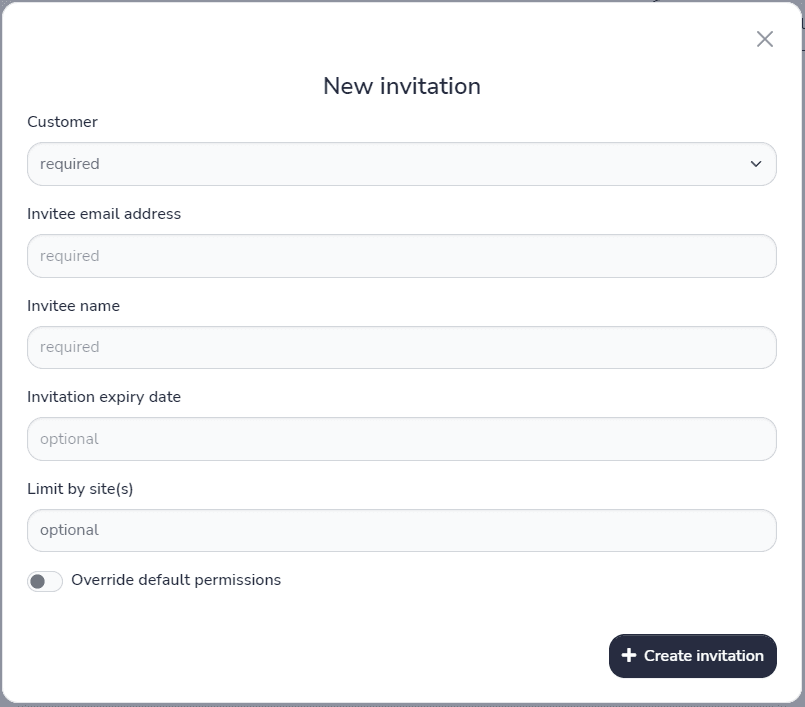
This opens a screen that allows you to give access to a specific customer for a given email address.
For the most basic invitation, you need to input:
- the customer
- the invitee's email address
- their name
Once an invitation has been created, you can send the unique code to your client. They will then need to create a free account on Dsposal, or log into their existing account.